LinkedIn Mention Alerts
Surface publicly indexed LinkedIn mentions for tracked keywords via Google Search results, with Telegram alerts and custom keyword management.
Overview
The LinkedIn Keyword Monitor page allows ShubHQ users to automatically track all mentions of their chosen keywords across the LinkedIn ecosystem. Whether it’s your brand name, product, project, or niche-related terms you’ll instantly know whenever someone is talking about it on LinkedIn. You’ll never miss potential customers, professionals, or competitors discussing your space.
The page operates on a Shared Pool system. ShubHQ surfaces publicly indexed LinkedIn posts via Google Search results based on your tracked keywords, and when matching content is found, it’s delivered directly to your dashboard. Only publicly indexed content is retrieved. This architecture makes retrieval both highly efficient and extremely fast.
 Page Structure
Header & Telegram Alerts
At the top of the page, a Telegram alerts info box is displayed. New LinkedIn mentions can be forwarded directly to your Telegram account:
- Connect via Notification Settings
- Message the @Shubhq_bot Telegram bot, run the
/startcommand, and paste your Chat ID into the ShubHQ panel
LinkedIn Keyword Monitor Header Bar
The main control band of the module:
- Auto-refresh: Active (hourly, 09:00-00:00) Current auto-refresh status and operating hours. The system queries Google Search for new public LinkedIn mentions every hour during the defined time range.
- Manual Refresh button Trigger an on-demand refresh at any time.
Shared Pool System Info
An info box summarizing how ShubHQ works: publicly indexed LinkedIn posts are surfaced through Google Search, and results matching your keywords are delivered to your dashboard. This method is optimized for both performance and speed.
Product Screenshots
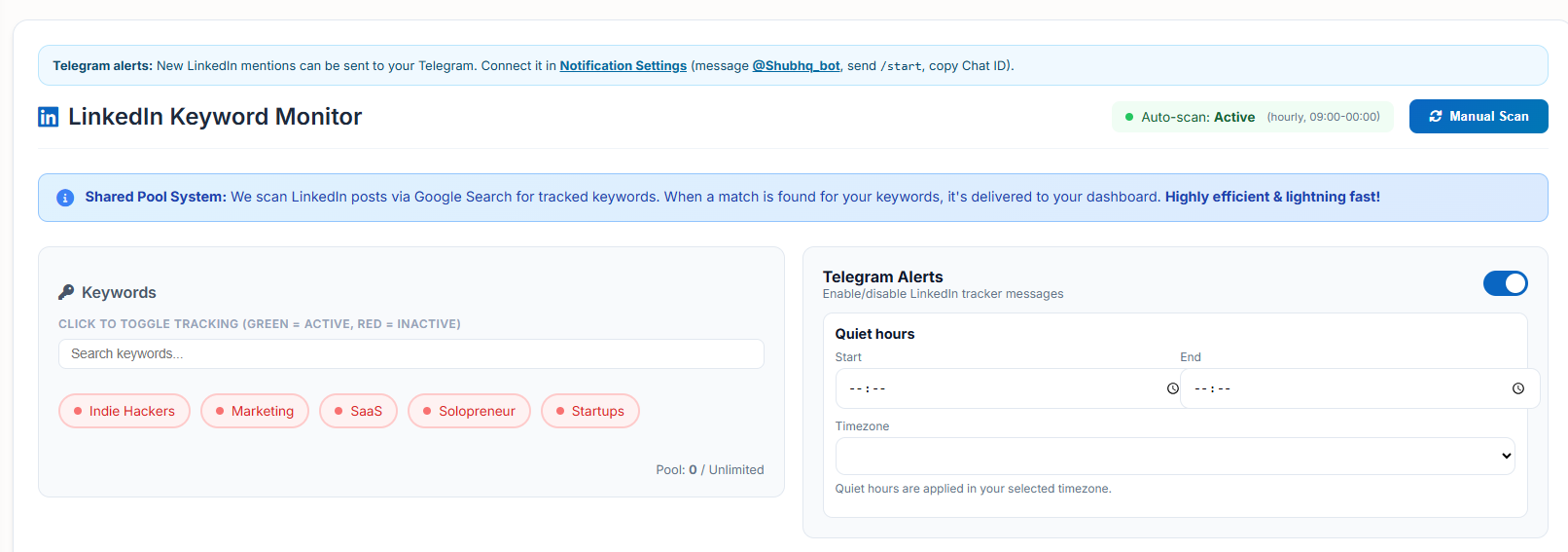
Main dashboard with keyword management, shared pool info, and refresh controls.

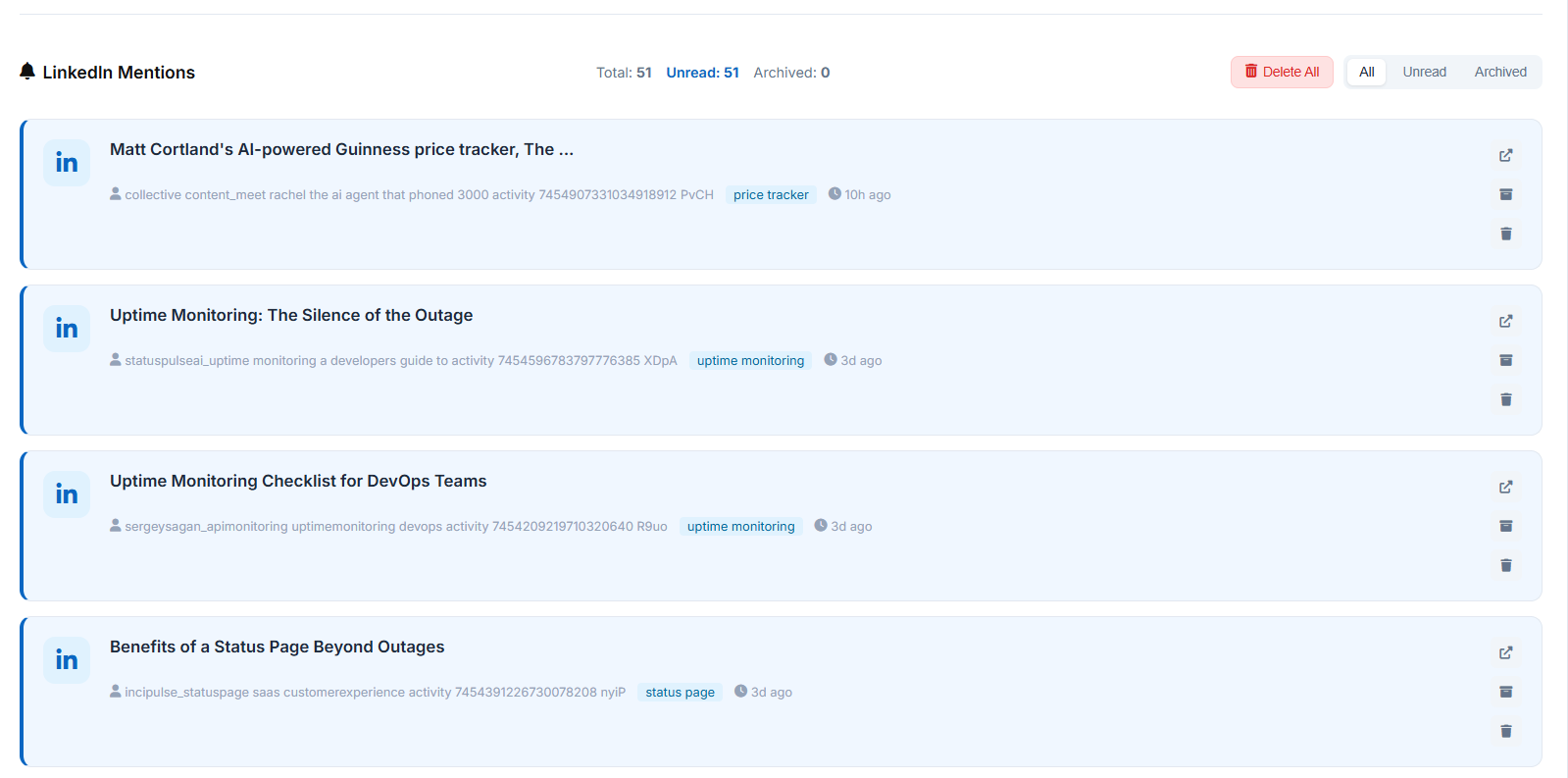
Keyword list with toggle tracking and mention feed with matched keywords.
Telegram alert settings, custom keyword entry, and Credits-based keyword options.
 Modules
1. Keywords
The panel where all your tracked keywords are managed.
Features:
| Feature | Description |
|---|---|
| Search Keywords | Search within your keyword list |
| Toggle Tracking | Click any keyword to toggle tracking on/off: 🟢 Green = Active tracking, 🔴 Red = Paused |
| Pool: 0 / Unlimited | Pool usage indicator (limit shown based on your plan) |
Ready Pool Keywords:
ShubHQ’s shared pool includes pre-defined keyword groups for popular niches on LinkedIn. Examples:
Indie Hackers,Marketing,SaaS,Solopreneur,Startups, and more.
2. Telegram Alerts
The panel for managing LinkedIn mention notifications via Telegram.
Features:
| Feature | Description |
|---|---|
| LinkedIn Tracker Toggle | Enable/disable LinkedIn tracker messages with one click |
| Quiet Hours | Set a time range when you don’t want to receive notifications |
| Start / End | Define quiet hour boundaries |
| Timezone | Select your timezone for accurate quiet hour application |
3. Add Your Own Keywords Pro & Enterprise
For Pro and Enterprise users, this area allows adding custom keywords not found in the shared pool.
Features:
- Type a keyword in the “Type a custom keyword” field and click Add
- Added keywords appear as tags (e.g.,
uptime monitoring,price tracker,status page,website monitoring) - Remove keywords by clicking the × icon next to the tag
- Custom: 4 / 5 counter shows your plan’s custom keyword limit
4. Allocate Extra Keywords with Credits
For users who need to track more keywords beyond their plan limit. Available for all plans.
Current Credits Balance (from your monthly subscription allowance) is displayed at the top (e.g., 15,872 Credits).
Package Options:
| Package | Credits Cost |
|---|---|
| +1 KW | 1,000 Credits |
| +2 KW | 2,000 Credits |
| +3 KW | 3,000 Credits |
How to Use:
- Select a package
- Type your keyword in the “Type keyword to track” field
- Click Add to allocate Credits from your monthly allowance and start tracking
Credit KW: 0 / 10 counter shows your Credits-allocated keyword usage.
About Credits: Credits are a usage allowance included in your subscription plan. They reset monthly with your billing cycle, cannot be purchased separately, transferred between users, withdrawn, or exchanged for monetary value.
5. LinkedIn Mentions (Mention Feed)
The main feed where all LinkedIn content matching your keywords is listed.
Header Stats:
| Stat | Description |
|---|---|
| Total | Total number of mentions |
| Unread | Unread mention count |
| Archived | Archived mention count |
| Delete All | Bulk delete all mentions |
Filter Tabs: All / Unread / Archived
Mention Card Contents:
| Element | Description |
|---|---|
| LinkedIn Icon | Indicates the source is LinkedIn |
| Title | Post or article title/summary (e.g., “Uptime Monitoring: The Silence of the Outage”, “Benefits of a Status Page Beyond Outages”) |
| Content Snippet | The text excerpt where your keyword appears including username, activity ID, and content portion |
| Matched Keyword | The keyword that triggered the mention (e.g., price tracker, uptime monitoring, status page) |
| Timestamp | When the mention was posted (e.g., “10h ago”, “3d ago”) |
Card Actions (Right Side):
| Action | Description |
|---|---|
| External Link (↗) | Open the content on LinkedIn |
| Archive | Move the mention to archive |
| Delete | Remove the mention from the list |
 How It Works
| Step | Description |
|---|---|
| Shared Pool | ShubHQ surfaces publicly indexed LinkedIn posts via Google Search |
| Keyword Match | When any keyword from your list appears in a public LinkedIn post or article indexed by Google, the system delivers it to your dashboard |
| Auto-refresh | Runs every hour (09:00-00:00) automatically |
| Manual Refresh | Can be triggered on-demand at any time |
| Notifications | If Telegram is connected, matches are sent there simultaneously |
| Management | Mentions are managed through All / Unread / Archived tabs; each can be archived or deleted |
 Plans & Limits
| Plan | Pool Keywords | Custom Keywords | Extra Keywords (Credits) |
|---|---|---|---|
| All Plans | Can track shared pool keywords | Can allocate extra keywords using Credits from monthly allowance | |
| Pro & Enterprise | Full pool access | Add custom keywords not in pool | Available |
| Pool Limit | Varies by plan | ||
| Enterprise | Unlimited | Higher custom limit | Available |
| Credit KW Limit | Separate counter (e.g., 0/10) |
Get Started
Ready to monitor LinkedIn for your brand and niche?
- Navigate to LinkedIn Mention Alerts from your dashboard
- Browse the shared pool keywords and enable tracking for relevant ones
- Set up Telegram alerts for real-time notifications
- Add custom keywords (Pro & Enterprise) or allocate extra slots using Credits from your monthly allowance
- Monitor the LinkedIn Mentions feed and archive/delete as needed
Happy monitoring!