Outreach Logbook
Manage all your outreach processes backlinks, guest posts, collaborations, and networking from a single centralized logbook.
Overview
The Outreach Logbook is a module that lets ShubHQ users manage all their external communication processes from a single hub. Backlink requests, collaboration discussions, guest post proposals, forum contacts, and social media networking activities are all recorded in this logbook.
Each contact entry is stored with channel info, contact details, status, and historical notes. This way you can track who you spoke with, when, and about what without losing track and time your follow-up messages perfectly.
 Page Structure
Top Action Area
- My Outreach Logbook title is displayed at the center of the page
- + Track New Contact button adds a new contact/communication record
Product Screenshots
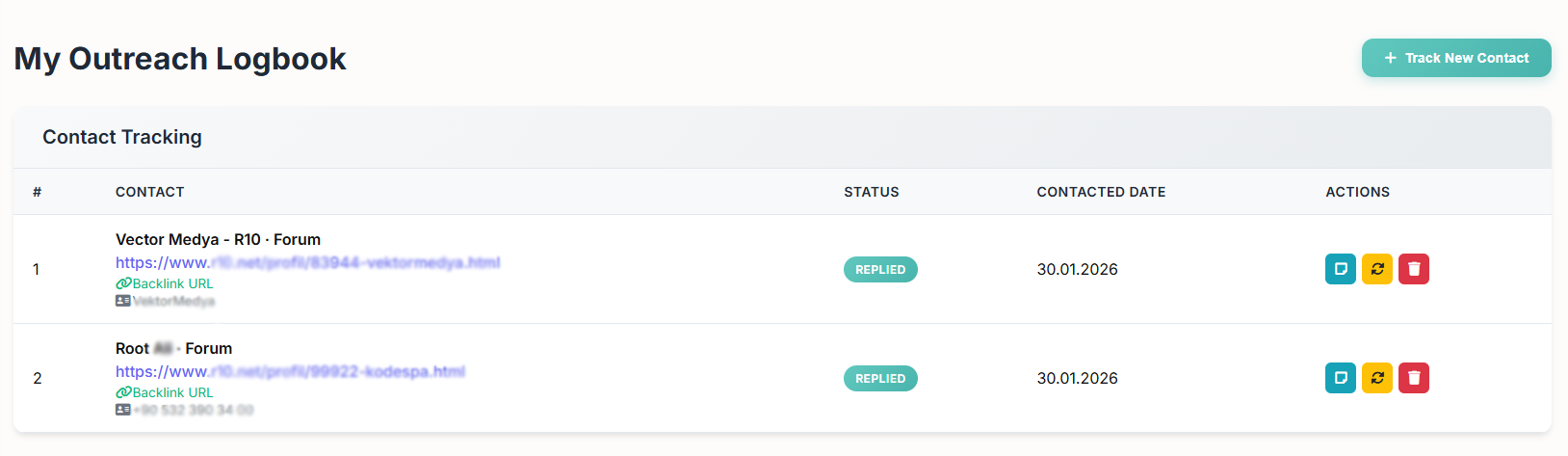
Contact tracking table with status labels, channel info, and quick actions.
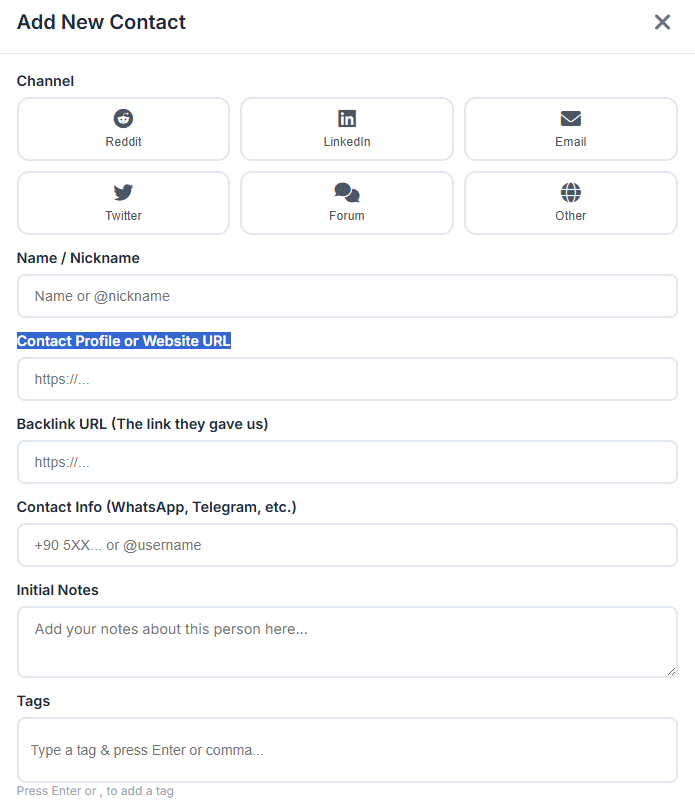
New contact form with channel selection, contact details, backlink URL, and tags.
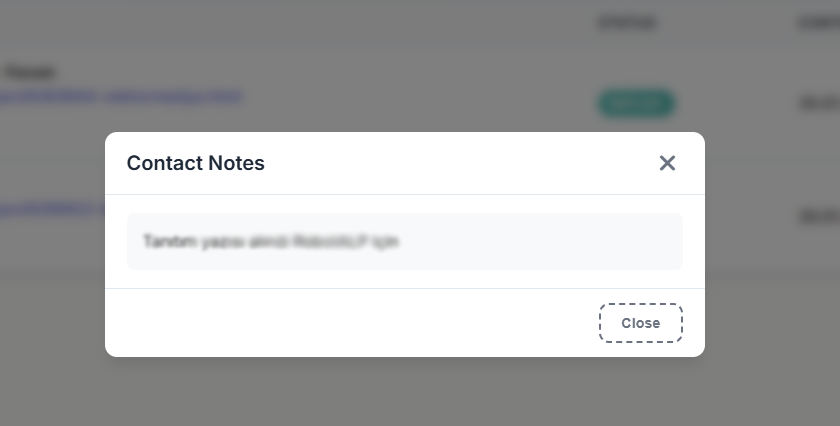
Contact notes timeline and status management interface.
Contact Tracking Table
The main table listing all your communication records.
Table Columns:
| Column | Description |
|---|---|
| # | Row number |
| CONTACT | Contact name, channel (Forum, Reddit, LinkedIn, Email, etc.), profile URL, Backlink URL, and contact info (phone, username, etc.) |
| STATUS | Communication status (REPLIED, PENDING, CONTACTED, NO REPLY) |
| CONTACTED DATE | Date of first contact |
| ACTIONS | Three quick action buttons |
Action Buttons:
| Action | Description |
|---|---|
 View Notes View Notes | Opens all notes for this contact |
 Update Status Update Status | Refreshes the contact status |
 Delete Delete | Removes the record from the list |
 Modules
1. Add New Contact
The form that opens when you click + Track New Contact. A new communication record is created with the following fields:
Channel:
Select the platform you used for communication:
- Twitter (X)
- Forum
- Other
Form Fields:
| Field | Description |
|---|---|
| Name / Nickname | Contact’s name or @username |
| Contact Profile or Website URL | Profile page or website address |
| Backlink URL (The link they gave us) | The backlink address given to you by the other party (if any) |
| Contact Info (WhatsApp, Telegram, etc.) | Phone number or username (e.g., +90 5XX… or @username) |
| Initial Notes | Notes about the first conversation (topic, request, agreed points) |
| Tags | Tags to categorize the contact (press Enter or comma to add; e.g., guest-post, backlink, seo-partner) |
2. Contact Notes
A pop-up module that displays all notes for a specific record. Opened via the notes icon in the Actions column.
- All notes you’ve added are displayed in chronological order
- Process updates like “Guest post accepted” or “Backlink placement confirmed” are stored here
- Close button closes the window
3. Status Management
Each contact’s status is tracked with visual labels:
| Status | Meaning |
|---|---|
| REPLIED | They responded |
| PENDING | Waiting |
| CONTACTED | Initial contact made |
| NO REPLY | No response |
Status can be updated with one click via the Actions column.
 Use Cases
| Scenario | Description |
|---|---|
| Backlink Outreach | Track communication with web admins you’re requesting backlinks from |
| Guest Post Management | Record acceptance/rejection status of your guest post proposals |
| Forum Communications | Manage connections made on forums and niche communities |
| Influencer & Collaboration | Organize professional contacts made via LinkedIn / Twitter |
| Reddit Networking | Keep track of private conversations with mods or high-karma users |
 Upcoming Features (Roadmap)
Automatic Follow-up Reminders
- “You messaged this person 3 days ago and haven’t heard back would you like to send a follow-up?”
- Custom reminder rules per status (e.g., PENDING → remind after 5 days)
- Notifications via Telegram / email
Email Template Library
- Ready-made templates for backlink requests, guest post proposals, collaboration offers
- Variable fields ({name}, {website}, {topic}) for personalization
- Template performance analysis: which template gets the highest reply rate?
AI Message Assistant
- Generates personalized outreach messages based on the contact’s profile and previous notes
- Tone selection (formal / casual / short / long)
- Suggests appropriate replies when a response comes in
Outreach Statistics & Dashboard
- Total sent, replied, and won contact counts
- Reply Rate and Conversion Rate graphs
- Channel-based performance: which platform is most effective (Reddit vs. LinkedIn vs. Email)?
- Monthly / weekly trend charts
Calendar View
- View communication history on a calendar
- List outreach planned for a specific day
- Google Calendar / Outlook integration
Advanced Tag & Filter System
- Multi-filter by tag, channel, status, and date
- Quick search (contact name / domain / note content)
- Smart filters like “People who haven’t replied in the last 30 days”
Bulk Import / Export (CSV / Excel)
- Import your existing outreach list via CSV
- Export all records as Excel
- Convert backlink reports to PDF
Pipeline / Kanban View
- Track outreach on a Kanban board: New → Contacted → Awaiting Reply → Won / Lost
- Drag-and-drop to change status
ShubHQ Module Integration
- Reddit / LinkedIn Keyword Monitor: Add a mention user to your outreach list with one click
- Backlink Monitor: Auto-flag the relevant contact when a backlink is lost
Multi-Contact History
- Timeline view for a single contact
- Each touchpoint (email, WhatsApp, Telegram, DM) added as a separate record
- “First contact → Follow-up after 3 days → Reply → Backlink acquired” flow visible at a glance
Spam & Suppression List Protection
- Protection against sending 3+ messages to the same person within 7 days
- Warnings for suppressed contacts (non-responders, aggressive repliers)
Multi-Account & Team Support (Enterprise)
- Multiple team members can share the same outreach logbook
- Track who is in contact with whom, and who earned which backlink
- Permission management: certain records visible only to specific members
ROI Calculator
- Estimated SEO value of earned backlinks
- Time spent on outreach vs. value gained comparison
- Monthly ROI report
Get Started
Ready to organize your outreach?
- Navigate to Outreach Logbook from your dashboard
- Click + Track New Contact to add your first record
- Select a channel, fill in the contact details, and add initial notes
- Use tags to categorize contacts (e.g.,
backlink,guest-post,collab) - Track status changes and add notes after each interaction
- Use the Actions column to view notes, update status, or delete records
Happy connecting!