Rank Tracker
Track your keyword rankings on Google by country with Credits-optimized auto-scanning. Monitor position changes, spot opportunities, and manage your SEO performance from a single dashboard.
A Credits-Optimized Keyword Ranking Module
Knowing where you rank on Google is the foundation of any SEO strategy. But manually checking rankings across dozens of keywords and multiple countries is tedious, and you lose track of changes over time.
Rank Tracker is ShubHQ’s keyword position monitoring module, designed to track your domain’s Google rankings by keyword and country, detect position changes automatically, and surface opportunities and risks in real time. The module operates on a Credits-based API usage system, where Credits are a monthly allowance included in your subscription where the cost of each rank check dynamically depends on the keyword’s position; higher-ranked keywords cost less Credits, lower-ranked keywords cost more.
The core purpose is to answer: “Where do I rank for my target keywords, and how is that changing?”, with intelligent cost optimization that consumes fewer Credits when your rankings improve.
 Page Structure
 1. Header Bar
The top section provides an overview of your rank tracking status.
| Control | Description |
|---|---|
| Rank Tracking | Page title. |
| Subtitle | ”Track your keyword rankings on Google.” |
| Auto-Refresh toggle | Enable or disable automatic rank scanning. |
| Credits Usage Counter (e.g. 3290/30000 Credits used) | Shows Credits consumed and remaining in the current plan period. |
Product Screenshots
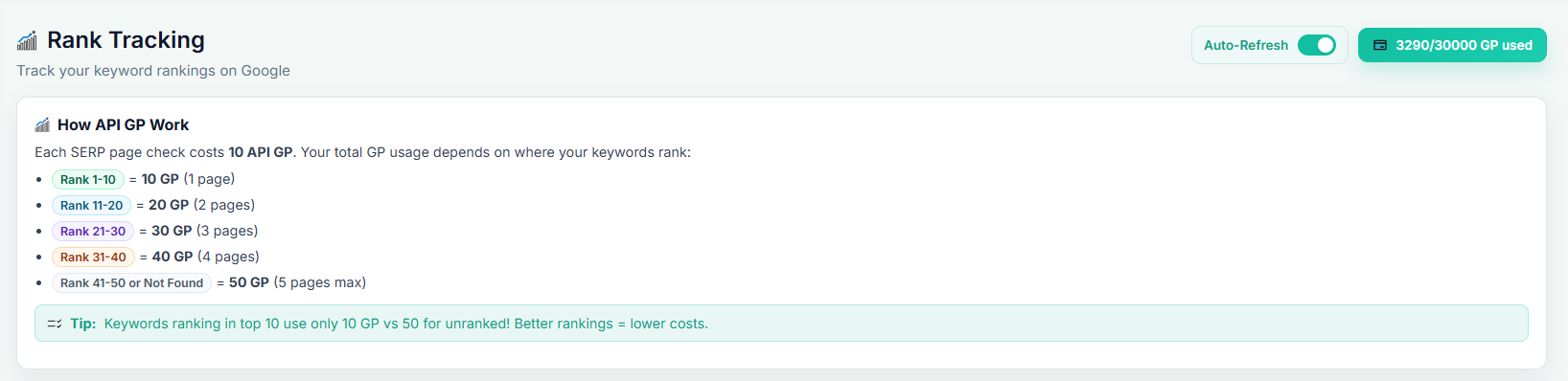
The header bar with page title, Auto-Refresh toggle, and Credits usage counter.
 2. How API Credits Work
An information panel explaining the cost logic behind rank checks.
Cost Table:
| Position Range | Credits Cost | Pages Scanned |
|---|---|---|
| Rank 1-10 | 10 Credits | 1 page |
| Rank 11-20 | 20 Credits | 2 pages |
| Rank 21-30 | 30 Credits | 3 pages |
| Rank 31-40 | 40 Credits | 4 pages |
| Rank 41-50 or Not Found | 50 Credits | 5 pages (max) |
How it works:
- Each SERP (Search Engine Results Page) check costs 10 Credits.
- The system scans page by page until it finds your keyword.
- The higher your keyword ranks, the fewer pages are scanned, and the less Credits is consumed.
Tip: Keywords in the Top 10 cost only 10 Credits; keywords not in the Top 50 cost 50 Credits. Better ranking = lower cost. This model naturally incentivizes improving your SEO performance.
 3. Your Domains
The panel where your tracked domains are managed.
| Element | Description |
|---|---|
| Domain card (e.g. robotalp.com) | Displays the tracked domain with a PRIMARY label. |
| Keywords tracked (e.g. 15 keywords tracked) | Number of keywords being monitored for this domain. |
| Domain counter (e.g. 1/5 domains) | Usage against your plan’s domain limit. |
| Info note | ”Your domains are pulled from Profile Settings. Update them there to change your tracked domains.” |
Product Screenshots

The Your Domains panel showing a tracked domain with keyword count and domain limit.
 4. Add New Keyword
The form for adding new keywords to track.
| Field | Required | Description |
|---|---|---|
| Keyword | Yes | The keyword to track (e.g. best saas tools). |
| Country | Yes | Target country (e.g. US - United States). |
| Add Keyword button | Adds the keyword to tracking. |
The form displays a note: “Adding keyword for robotalp.com, Credits charged per rank check (10-50 Credits).” Each scan costs between 10-50 Credits depending on the keyword’s position.
 Tracked Keywords Table
The main table where all active keywords are managed.
Table Columns
| Column | Description |
|---|---|
| KEYWORD | The tracked keyword (e.g. best website monitoring tools, free uptime monitoring, open source price tracker). |
| DOMAIN | The domain being checked (e.g. robotalp.com). |
| COUNTRY | Target country with flag icon (US, UK, etc.). |
| RANK | Current Google position (e.g. #23, #8, Not in top 50). |
| CHANGE | Position change since last check (see below). |
| BEST | The best ranking recorded for this keyword (e.g. #2, #3, #10). |
| LAST CHECK | Time since last scan (e.g. 20h ago, 23h ago, 05.04.2026). |
| AUTO | Auto-scan toggle (on/off). |
| ACTIONS | Quick action buttons. |
 Change Indicators
The CHANGE column uses visual indicators to communicate rank movement at a glance:
| Indicator | Color | Meaning |
|---|---|---|
| ↑ X | Green | Moved up X positions. |
| ↓ X | Red | Moved down X positions. |
| = #X | Gray | No change, same position. |
| ★ New | Blue | Entered the Top 50 for the first time. |
| +14 (with rocket icon) | Green | Major jump. |
| ⚠ Dropped | Yellow | Dropped out of the Top 50. |
| · | Gray | Still outside the Top 50. |
 AUTO Toggle
| State | Visual | Behavior |
|---|---|---|
| On | Green | System scans automatically at regular intervals. |
| Off | Gray | Manual-only mode, no automatic scanning. |
 Actions
| Action | Description |
|---|---|
| Competitor Comparison | View competitors ranking for the same keyword. |
| Detail History | View the keyword’s ranking history chart. |
Product Screenshots

The Tracked Keywords table showing rank positions, change indicators, best rankings, and auto-scan toggles.
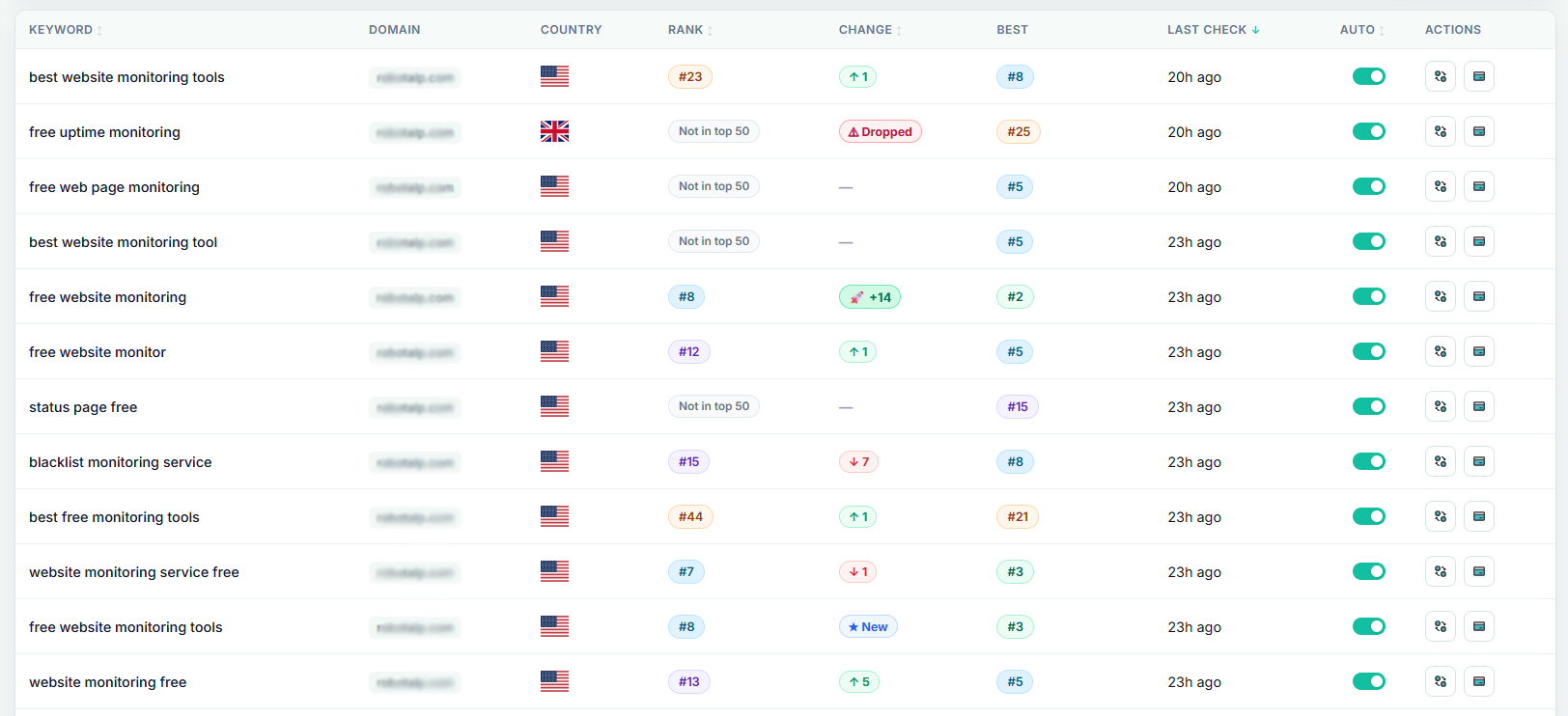
Detailed view of keyword entries with competitor comparison and history actions.
 How It Works
| Step | Description |
|---|---|
| 1. Add Domain | Define your tracked domains in Profile Settings. |
| 2. Add Keywords | Add keywords for each domain with a target country. |
| 3. Initial Scan | The system searches Google for the keyword and detects the current position. |
 4. Credits Cost 4. Credits Cost | Credits is consumed based on how many pages were scanned to find the keyword. |
 5. Auto-Check 5. Auto-Check | If AUTO is enabled, the system scans periodically without manual intervention. |
| 6. Change Tracking | Each scan compares against the previous result, changes are displayed in the CHANGE column. |
 7. Best Rank 7. Best Rank | The all-time best position is stored in the BEST column. |
| 8. Dashboard Insights | Rising keywords, major drops, and new entries are surfaced for quick action. |
 Use Cases
| Use Case | What You Gain |
|---|---|
| Daily SEO Briefing | See which keywords rose or fell when you open the dashboard each morning. |
| Algorithm Update Tracking | Detect ranking movements quickly after a Google core update. |
 Content Performance Content Performance | Monitor which keywords newly published blog posts start ranking for. |
| Page 2 Opportunity | Identify keywords ranking #11-20 and strengthen content to push them to Page 1. |
| Multi-Country SEO | Track the same keyword across US, UK, TR, and other countries in parallel. |
| New Ranking Detection | Catch keywords entering the Top 50 for the first time with the ★ New badge. |
 Drop Early Warning Drop Early Warning | Instantly notice keywords that dropped out of the Top 50 with the ⚠ Dropped label. |
| Position vs. Best | Compare RANK and BEST columns to see how far keywords have drifted from their peak. |
Credits Management & Cost Optimization
Rank Tracking is one of the modules most aligned with ShubHQ’s Credits-based resource management model. Follow these principles to use Credits efficiently:
| Principle | Description |
|---|---|
| Prioritize Top 10-approaching keywords | Keywords near the Top 10 cost less Credits, focus your budget here. |
| Pause “Not in top 50” keywords from auto-scan | This is the highest-cost group, switch to manual checks. |
| Keep important keywords on AUTO | Maintain regular tracking for your most valuable keywords. |
| Use manual mode for test/research keywords | Prevent unnecessary Credits consumption on exploratory terms. |
| Watch the Credits counter | When approaching the limit, the system warns you, pause non-essential checks. |
Plans & Limits
| Resource | Description |
|---|---|
| Domains | Varies by plan (e.g. 1/5, 3/5, 5/5). |
| Keywords per Domain | Plan-based keyword limit per domain. |
| Credits Quota | Monthly Credits allocation (e.g. 30,000 Credits). Credits reset with your billing cycle. |
| Auto-Refresh | Available on all plans; scan frequency varies by tier. |
| Countries per Keyword | One target country per keyword entry (each country is a separate record). |
| History Retention | Varies by plan (30/90/365 days). |
 Roadmap, Planned Modules
The following modules are planned to expand Rank Tracker into a comprehensive SEO command center:
Ranking History Chart
A time-series ranking graph for each keyword (weekly/monthly).
- Multi-keyword comparison, overlay multiple keywords on a single chart.
- Google update dates as overlay markers on the graph.
SERP Snapshot
Capture and store the Google search results page at the time of each rank check.
- Historical SERP comparison: “Which sites were on Page 1 three months ago?”
- Track the presence of Featured Snippets, People Also Ask, and AI Overview.
Keyword Cluster
Automatically group similar keywords (e.g. variations of “uptime monitoring”).
- Cluster-level aggregate performance score.
- Cannibalization detection, flag when your own pages compete against each other.
Competitor Rank Comparison
Show 3-5 competitors’ positions for each tracked keyword.
- Side-by-side line chart comparing you vs. competitors.
- Alert: “Competitor is rising while you’re holding steady.”
Advanced Filters & Segmentation
Quick filters like “My Top 10 keywords”, “Page 2 keywords”, “Dropped this week”.
- Tag system (e.g. “homepage”, “blog”, “product page”) for categorization.
- Saved views for recurring analysis.
Bulk Actions
Select multiple keywords to pause, delete, or re-scan in batch.
- CSV bulk keyword import.
- Excel/CSV export of all tracking data.
URL Tracking (Which Page Is Ranking?)
Track which URL ranks for each keyword, not just the position.
- Alert when the ranking URL changes (Google may have switched page preference).
- Cannibalization flag when multiple URLs compete for the same keyword.
Country + City-Level Local SEO
City/region-level ranking in addition to country-level (critical for e-commerce and local services).
- Google Maps / Local Pack ranking as a separate column.
Mobile vs. Desktop Ranking
Track the same keyword’s mobile and desktop rankings separately.
- Comparative chart showing device-based position differences.
Ranking Volatility Score
A 0-100 score measuring how frequently a keyword fluctuates.
- AI suggestion: “This keyword is highly volatile, more frequent checks recommended.”
Traffic Estimation
Estimated organic traffic based on ranking position and search volume.
- Projection: “Moving from position 5 to position 2 would gain approximately +1,200 monthly visits.”
Search Console Integration (Cross-Data)
Pull real clicks, impressions, and CTR from Google Search Console and merge with Rank Tracking data.
- Insight: “Your ranking improved but clicks are declining, revise your title tag.”
AI Ranking Assistant
For dropped keywords, analyze the “likely cause” (new competitor, content staleness, intent shift).
- For rising keywords, explain “why it worked and how to replicate this pattern across other keywords.”
- Auto-generate an action list.
Automated Telegram / Email Alerts
Instant notifications for defined thresholds (e.g. “Entered Top 3”, “Dropped 10+ positions”, “Left Top 50”).
- Weekly summary email, risers, fallers, and new entries.
- Slack / Discord webhook integration.
Featured Snippet & SERP Feature Tracking
- Which keywords have you captured a Featured Snippet for?
- Track People Also Ask, Site Links, Image Pack, Video Pack presence.
- AI Overview inclusion/exclusion tracking.
Competitor Keyword Discovery
AI automatically suggests keywords your competitors rank for that aren’t in your tracking list.
- Discovery flow: “Your competitor ranked for 50 new keywords, 12 are relevant to you. Add them?”
Seasonality Analysis
Month-by-month ranking pattern for each keyword.
- Recommendation: “This keyword peaks in May, update your content mid-April.”
- 12-month × N-year heatmap.
Content Update Recommendation
Reminder to refresh content when a keyword drops.
- Correlation between page last-update date and ranking decline.
- AI content brief generation (Content Radar integration).
Cannibalization Detection
Automatic flagging when multiple URLs compete for the same keyword.
- Recommendation on which URL to prioritize.
- Internal linking suggestions.
Workspace & Team Mode (Enterprise)
Shared workspace where multiple team members can add and track keywords for the same domain.
- Member-level permissions (read-only, add, delete).
- Activity log, who added which keyword, who modified which domain.
Goal Setting & Progress Bar
Set a target position for each keyword (e.g. “Enter Top 5”).
- Progress bar that fills as you approach the target.
- Notification and badge when the goal is reached.
Ranking ROI Calculator
Estimated monetary value of ranking improvements (CPC × estimated traffic).
- Monthly SEO performance value report.
- Summary: “This month, Rank Tracker helped you discover X TL in value.”
The Bottom Line
Rank Tracker is a comprehensive SEO command dashboard that monitors your Google rankings by keyword and country, with automatic or manual scanning and a dynamic Credits-based cost model that uses fewer Credits as your rankings improve.
| What You Get | Why It Matters |
|---|---|
| Country-level keyword tracking | Know exactly where you rank for each target keyword |
| Change indicators (↑↓★⚠) | Instantly see which keywords are moving and in which direction |
| Best rank tracking | Compare current position against all-time best performance |
| Credits-optimized cost model | Higher rankings = lower cost, a natural incentive to improve SEO |
| Auto-refresh scanning | Hands-free monitoring with configurable auto-scan |
| Multi-country support | Track rankings across different markets in parallel |
| Drop detection | Instantly spot keywords that fall out of the Top 50 |
Our roadmap includes ranking history charts, SERP snapshots, competitor comparison, keyword clustering, Search Console integration, AI ranking assistant, mobile/desktop separation, cannibalization detection, and goal setting, all designed to make this page the strategic tracking center SEO professionals open every morning.
Get Started
Ready to start tracking your keyword rankings?
- Navigate to Rank Tracker from your dashboard
- Verify your domain in Your Domains (pulled from Profile Settings)
- Add your first keyword with a target country using the Add New Keyword form
- Monitor the Tracked Keywords table for current rankings and changes
- Use the AUTO toggle to enable automatic scanning for important keywords
- Watch the Credits Usage Counter to manage your budget efficiently
- Check the CHANGE column daily to catch movements early
Happy ranking!