Backlink Growth Plan
Automated listicle opportunity discovery using your tracked keywords. AI-powered outreach angles, fit scoring, and a built-in pipeline from discovery to link acquisition.
Stop guessing where your product should be listed
Every SaaS founder knows the pattern: a competitor shows up in “Best status page tools for 2026,” “Top 10 X alternatives,” or “X vs Y comparisons” - and you don’t. Those listicles drive dofollow links + qualified traffic for years.
Backlink Growth Plan is ShubHQ’s automated link-opportunity discovery engine. It takes the keywords you already track in Rank Tracker, amplifies them into listicle-shaped SERP queries, scrapes real Google results, and uses AI to score each result on fit and relevance for your product - plus generates a tailored outreach angle for every viable opportunity.
This guide walks you through everything: setup, your first run, how to read the outputs, monthly best practices, and troubleshooting.
 What problem does this solve?
Manual link prospecting is brutal. The workflow looks like this:
Even at 10 minutes per opportunity, 30 opportunities = 5 hours. Most of which is wasted on lists that don’t fit your product.
Backlink Growth Plan compresses steps 1–6 into a single click, and gives you step 7 (the pitch) pre-written based on what the list is missing.
 Prerequisites
Before generating your first plan, you need:
| # | Requirement | Details |
|---|---|---|
| 1 | A connected domain | Set up in ShubHQ workspace settings |
| 2 | At least one active keyword | Added in Rank Tracker |
| 3 | Membership tier | Free works (1-keyword preview), Starter+ gets full runs |
Tip: Add 5–15 keywords to Rank Tracker before your first run. Similar keywords are automatically grouped (e.g. “status page tool” + “public status page” + “status page free” → one group), so 15 specific keywords cost the same as 5 generic ones.
 Step 1 - Open Backlink Growth Plan
Navigate to Backlinks → Backlink Growth Plan in the sidebar, or open it directly. You’ll see:
| Element | Description |
|---|---|
| Past Plans (N) | Dropdown of every run you’ve ever made |
| Monthly usage pill | e.g. 0 / 2 this month |
| Generate Plan | Green CTA to start a new run |
| KPI row | Opportunities found, High-fit count, Avg. Relevance, Tracked Keywords, Monthly Usage |
If you haven’t run a plan yet, the KPI row shows zeros and the grid below is empty.
Product Screenshots

The Backlink Growth Plan dashboard showing the KPI row, Generate Plan button, and monthly usage indicator.
 Step 2 - Generate your first plan
You have two options:
Option A: Full run (all keywords)
Click Generate Plan. You’ll see a confirmation:
Generate Plan? Uses 1 of 2 monthly runs (Pro plan). No credits will be charged.
Confirm. A blue progress banner appears: Analyzing SERPs… 12% - updating every 3 seconds.
What’s happening under the hood:
| Step | Process |
|---|---|
| 1. Pull keywords | All your active keywords from Rank Tracker |
| 2. Cluster | Group similar keywords to avoid duplicate searches |
| 3. Apply modifiers | This month’s modifier rotation (changes monthly) |
| 4. Search Google | Pull live top-10 organic results for each query |
| 5. Parse & dedupe | Remove duplicates, drop your own domain |
| 6. Filter | Keep only listicle-shaped results (“best”, “top N”, “alternatives”, “vs”) |
| 7. AI pre-score | Fast pass to eliminate irrelevant pages |
| 8. AI final-score | Deep analysis on top candidates - assigns fit, relevance, outreach angle |
| 9. Deduplicate | Skip URLs already in your library (last 90 days) or blacklist |
| 10. Save | Present results as opportunity cards |
Total time: 45–90 seconds depending on keyword count.
Option B: Per-keyword run (the bolt button)
Hover over any keyword chip and click the small bolt icon. This runs the pipeline for that single keyword only - useful when you’ve added a new keyword and don’t want to burn a full-run quota.
When to which: Use a full run at the start of each month for broad coverage. Use the bolt when you add a new keyword mid-month or want to deep-dive into one specific topic.
Product Screenshots

The Generate Plan flow with keyword chips, confirmation dialog, and progress banner.
 Step 3 - Read the opportunity cards
Each card shows:
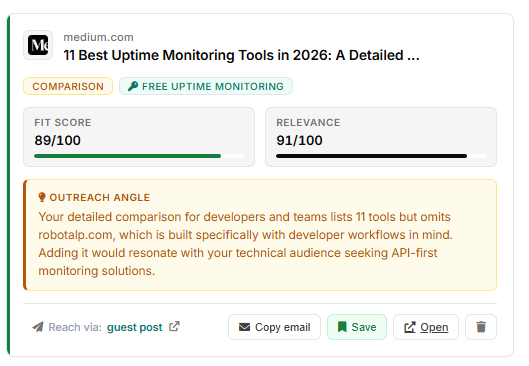
Anatomy of an opportunity card: source URL, article title, type badge, DR, keyword tag, fit score, relevance, outreach angle, and contact hint.
 Fit Score (0–100)
How likely your product would actually be accepted into this list. Considers list size, niche match, age, and competitive density.
| Range | Priority | Action |
|---|---|---|
| 80–100 | High | Immediate outreach priority |
| 60–79 | Medium | Worth pitching with a strong angle |
| <60 | Low | Probably skip (often informational pages, not curated lists) |
The left edge of the card is color-coded: green ≥80, orange 60–79, gray <60.
 Relevance (0–100)
How topically aligned the page is with your tracked keyword. High relevance + low fit usually means: related topic, but not a list you can join.
 Listicle Type
| Type | Description | Example |
|---|---|---|
| BEST-OF | Roundup | ”12 best X” |
| ALTERNATIVES | Competitor alternatives | ”X alternatives” |
| COMPARISON | Head-to-head | ”X vs Y vs Z” |
| GUIDE | Educational guide that mentions tools | ”How to choose X” |
 Outreach Angle
The single most valuable output. A 1–2 sentence pitch tailored to:
- What this specific list is missing
- How your product fills that gap
Use it verbatim or as a starting point. The angle accounts for the article’s actual content - it’s not a generic template.
 Contact Hint (clickable)
A small “Reach via:” pill at the bottom-left of each card. Click it and we open a precisely-scoped Google search for that domain’s contact page:
| Hint | What “Reach via” opens |
|---|---|
| email outreach | site:domain.com contact |
| guest post | site:domain.com "guest post" |
| profile claim | site:domain.com claim |
| form submission | site:domain.com submit |
| low priority | (disabled, author unlikely to update) |
These single-keyword queries return cleaner SERPs than multi-OR searches. You’ll typically land on the publisher’s contact, write-for-us, or vendor-onboarding page in one click.
Product Screenshots
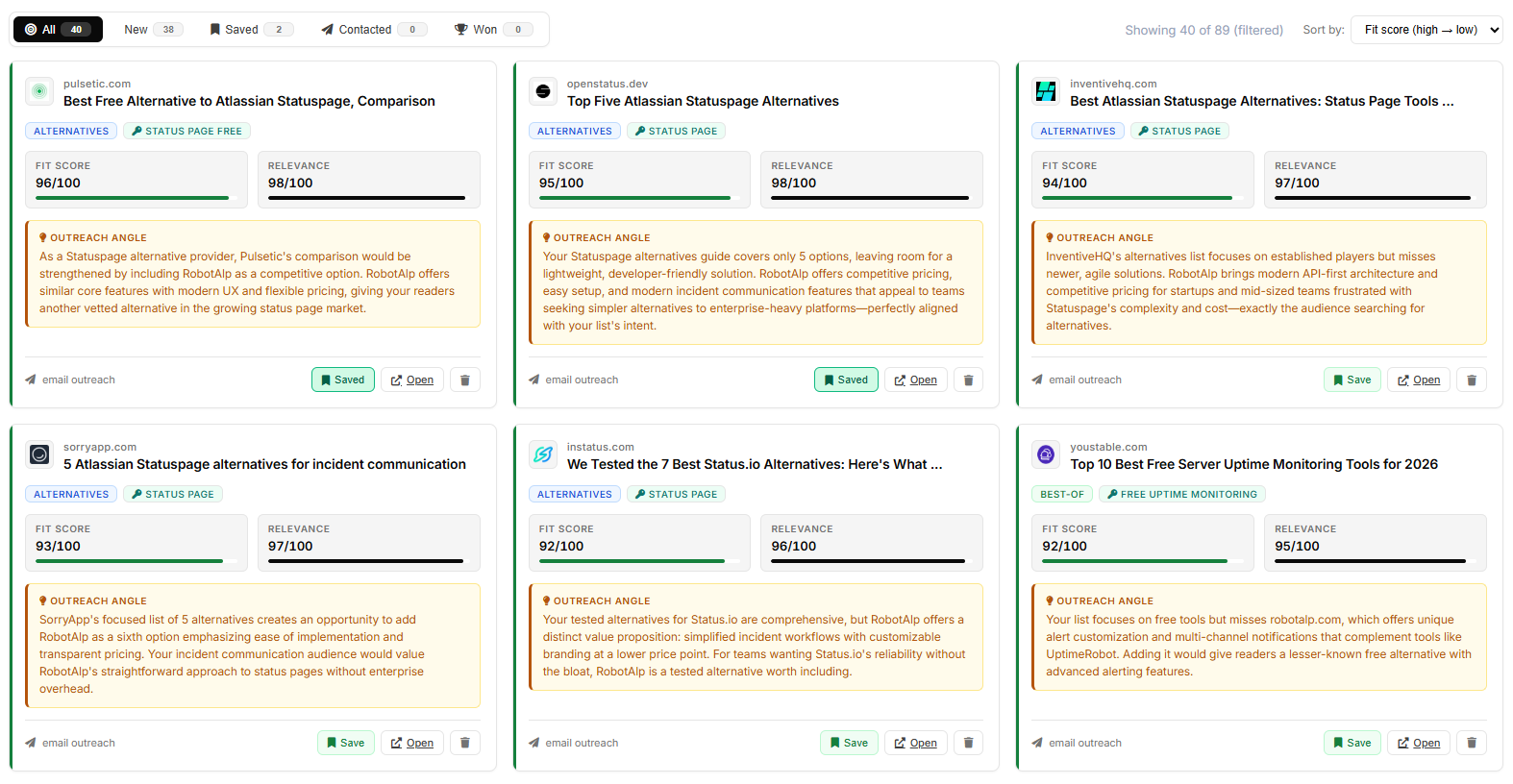
Opportunity cards showing fit scores, DR, traffic, type badges, and AI-generated outreach angles.
 Step 4 - Manage opportunities
Each card has 4 actions:
Copy email, AI writes your outreach
Click Copy email. In under 2 seconds, AI reads the article’s title, your outreach angle, your tracked keyword, and your website URL, then drafts a complete email (subject + body) and copies it to your clipboard.
A green toast confirms: “AI-personalized email copied!”
Paste in Gmail / Outlook (Ctrl+V):
- Gmail auto-detects the
Subject:line on the first row - Body comes pre-written, 90-140 words, 3 paragraphs, no buzzwords
- Replace
[Your name]with yours, hit Send
Every email is unique, written fresh per click. Two cards for the same article will produce different emails. The AI receives the article title, your outreach angle, your keyword, and your website (from onboarding) and weaves them into a natural pitch.
Cost: ~$0.0005 per click. Included free with every plan.
 Save, track for outreach
Click Save to bookmark. The card’s status becomes saved and the Saved tab count increments.
 Reach via, find their contact page
Click the Reach via: pill to open a Google site search scoped to that domain. Lands you on their contact/guest-post/submission page in one click.
Delete (permanent blacklist)
Click the red trash icon to remove a card forever. The URL is added to your personal blacklist, it will never appear in any future run, even if it ranks #1 next month.
Use this for:
- Irrelevant results (competitor blogs that won’t link)
- Links you’ve already secured (no need to see them again)
- Spammy or low-quality domains
The blacklist is permanent and currently doesn’t have an “unhide” UI. If you blacklist by mistake, contact support.
Pipeline tabs
[All 90] [New 73] [Saved 12] [Contacted 4] [Won 1]
Five status filters at the top of the grid. Click any tab to see only opportunities in that status. Counts update live as you Save/Contact/Win cards.
Filter compounding: Tabs respect your active type/keyword/min-fit filters. If Min. fit is 80+ and type is Alternatives, “Saved 3” means 3 saved cards matching those filters, not 3 total saved.
The “Showing X of Y (filtered)” indicator next to Sort by clarifies the difference between total and visible.
Status workflow
- New → just discovered, untouched
- Saved → bookmarked for outreach
- Contacted → pitched (currently you mark this manually after sending)
- Won → got the link
Tip: Mark a card as Won after you confirm your link is live in their article. Future Backlink Analyzer scans will catch it automatically, Won is for your own pipeline tracking.
 Filters
| Filter | Options |
|---|---|
| Keywords | Chip selector + bolt per-keyword run |
| Type | All / Best-of / Alternatives / Comparison / Guide |
| Min. fit | Any / 70+ / 80+ (recommended) / 90+ |
Filters compound. “Min fit 80+ AND status page keyword AND Saved tab” is one click each.
Sort
Two sort options:
- Fit score (high → low) - default. Most likely to actually accept your pitch.
- Relevance - most topically aligned with your keyword (regardless of fit).
 Step 5 - Browse Past Plans
The Past Plans (N) dropdown (top-right) lists every run you’ve made. Each entry:
Strategy #5 12 keywords · status page · May 14, 2026 47 opps · quota
Click any past plan to filter the grid to only that run’s opportunities. The URL updates to ?run_id=X so you can bookmark or share.
Click “Latest (all runs)” at the top to return to the cumulative view.
Hover any past plan to reveal a trash icon - deletes that run and all its opportunities. (Doesn’t affect blacklist - blacklisted URLs stay blacklisted.)
History limits by tier:
| Tier | History |
|---|---|
| Free | Last 1 plan |
| Starter | Last 5 |
| Pro | Last 20 |
| Business | Unlimited |
 Monthly best practices
 Modifier rotation
Different month → different SERPs. We rotate modifier sets quarterly:
| Quarter | Modifiers |
|---|---|
| Jan / Apr / Jul / Oct | best X 2026, top X tools, X alternatives |
| Feb / May / Aug / Nov | X comparison, best X for startups, X vs competitors |
| Mar / Jun / Sep / Dec | X review, top X software, X alternatives 2026 |
This means running every month surfaces genuinely new opportunities - not the same 30 URLs over and over.
The 90-day skip window
URLs you’ve already discovered in the last 90 days won’t be re-analyzed, even if they show up in SERPs again. This keeps your view clean and avoids duplicate work.
If you want to force-rediscover an old URL, delete it from your opportunity list (don’t blacklist).
 Cluster awareness
If you track “X tool”, “X software”, and “best X”, we’ll cluster them and run modifiers on the most generic seed. Each opportunity gets tagged with the most-matched keyword from the cluster.
Pro tip: Track specific keywords (“postmortem incident management”) not generic ones (“software”). Specific keywords cluster cleanly and produce sharper outreach angles.
 Pricing & quotas
| Plan | Monthly Runs | Overage | Past Plans |
|---|---|---|---|
| Free | 1 (preview only) | n/a | 1 |
| Starter | 1 | 230 credits | 5 |
| Pro | 2 | 230 credits | 20 |
| Business | 4 | 230 credits | Unlimited |
What’s a “run”?
One full-keyword analysis. Per-keyword runs also consume 1 quota slot - they’re not free.
Free tier preview mode:
Free users get 1 monthly preview limited to 1 keyword × 1 modifier (≈ 5 opportunities). Enough to see the product work - not enough for production use.
FAQ
Troubleshooting
Plan stuck at “Queued…”
The background worker normally fires within seconds. If it’s stuck for more than 30 seconds, refresh the page. If that doesn’t help, contact support.
Run failed - error in status
Check the Past Plans dropdown - failed runs show a red icon. Click to see the error message. Most common causes:
- Temporary search service outage (usually resolves within minutes)
- Keyword list too large for your current plan
- Network timeout on long runs
Contact support with the run ID if it persists.
 What’s next on the roadmap
- Outreach email tone customization (formal / casual / brief)
- Blacklist management UI (un-hide accidentally-removed URLs)
- CSV export
- Outreach inbox (mark contacted, log replies)
- DataForSEO Domain Rating integration, DR sort
- Multi-language modifier sets (Turkish, Spanish, German)
- Weekly auto-discovery (toggle to run automatically every Monday)
- Slack / Telegram notifications when high-fit opportunities appear
What makes it different
| Feature | Backlink Growth Plan | Manual Prospecting |
|---|---|---|
| Time per opportunity | Seconds | 10+ minutes |
| Outreach angles | AI-generated, tailored to each list | You write from scratch |
| Keyword amplification | Auto-generates “best”, “alternatives”, “vs” queries | Manual brainstorming |
| Deduplication | Automatic across runs (90-day window) | Manual tracking |
| Blacklisting | Permanent, never re-appears | Spreadsheet cleanup each time |
| Pipeline tracking | Built-in (Saved → Contacted → Won) | Separate tool needed |
| Monthly freshness | Modifier rotation ensures new results each month | Same searches repeatedly |
Get Started
Ready to find your first listicle opportunities?
- Open Backlink Growth Plan from your dashboard
- Ensure you have active keywords in Rank Tracker
- Click Generate Plan for a full run, or use the bolt icon on individual keyword chips
- Review opportunity cards sorted by Fit Score
- Save the ones you’ll pursue, Hide the irrelevant ones
- Use the generated outreach angles as your pitch starting point
- Track your progress through Saved → Contacted → Won
Happy link building!